



Learn how to process large PDFs with LLMs through accurate extraction, smart chunking strategies, metadata enrichment, and reliable production-grade pipelines built for scale.
Working with large PDFs sounds simple, but in real work it gets messy very fast. Some pages have text, some have tables, some have weird layouts, and a few even have diagrams that normal extractors can’t understand.
Here are some methods to use in your projects. It’s simple, practical, and avoids the common mistakes developers make when dealing with big PDFs.
Show
- Different PDF page types require different extraction tools — PyMuPDF for clean text, pdfplumber for bordered tables, and AWS Textract for borderless or scanned layouts; no single extractor works universally.
- Chunking should never split at a fixed word/character count — always break at the last complete sentence before the token limit (e.g. ~800 tokens) to preserve meaning and context for the LLM.
- Metadata attached to each chunk (page number, section heading, file name, chunk ID) significantly improves vector search accuracy, with section headings alone boosting semantic search by approximately 30%.
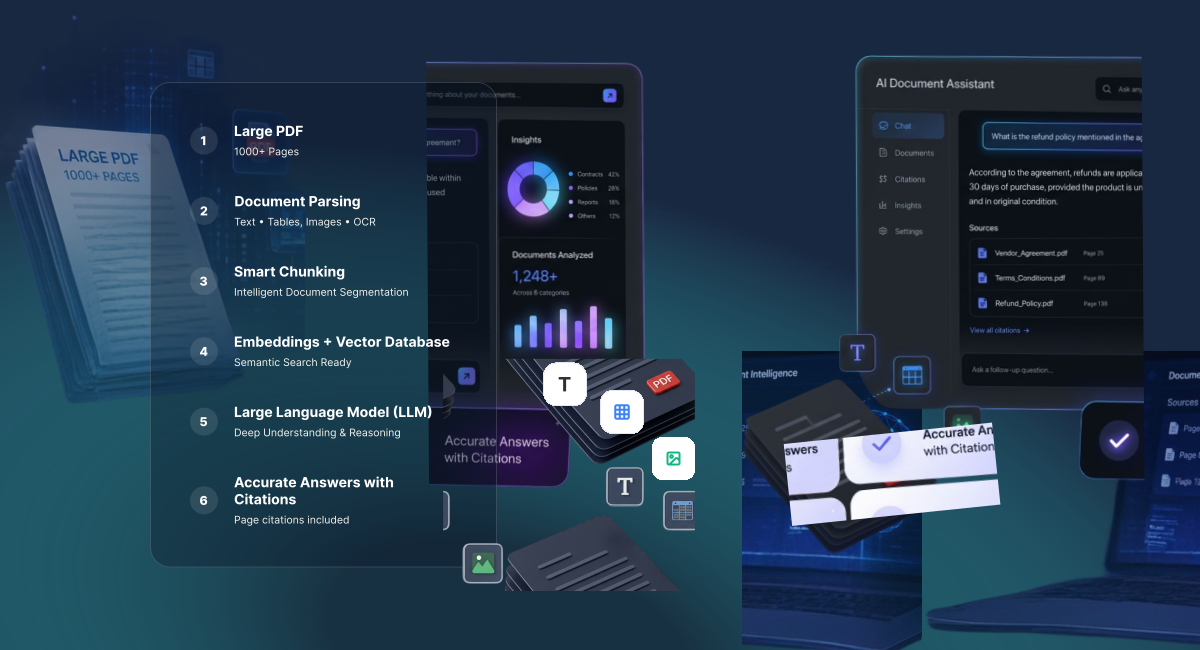
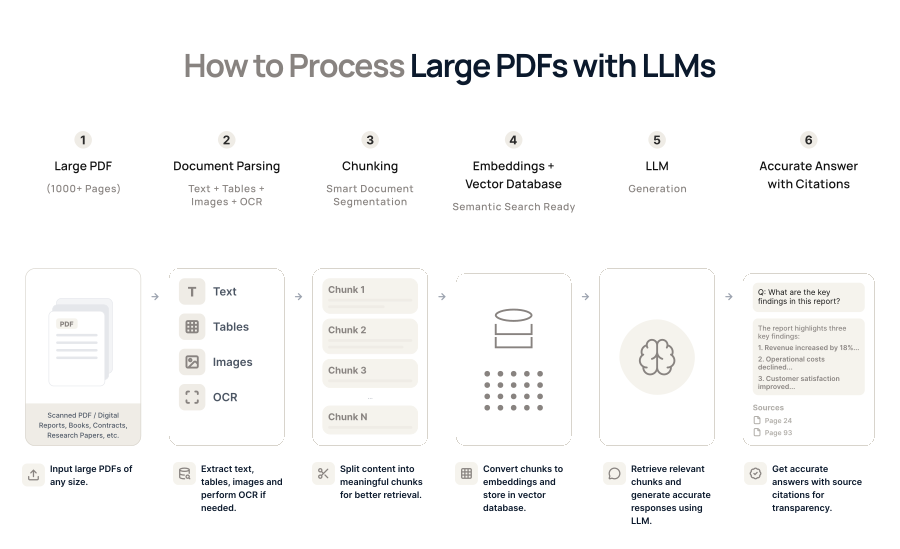
- Instead of sending an entire PDF to the LLM, convert chunks into embeddings, store them in a vector database, and retrieve only the most relevant chunks at query time — reducing cost, latency, and hallucination risk.
- A well-structured PDF RAG pipeline (mixed extraction + smart chunking + metadata) resolves most common developer failures when building production-grade document AI systems.
Step 1: Use the Right Extraction Tool (Not One Tool for Everything)
Different pages need different best PDF extraction tools. Using one extractor for everything usually leads to broken tables or missing text.
A single library won’t work well for every type of content inside a PDF.
So you actually need a small mix.
1. PyMuPDF (text-based extraction)
PyMuPDF is usually the fastest and easiest option when a page has clean text. It picks up paragraphs well and gives you plain text without too much noise. But when the page contains diagrams, tables, or anything slightly complex, PyMuPDF starts to fail. It doesn’t detect table cells correctly, and it treats diagrams like random text blocks. So only use it on simple text pages.
Pros
- Very fast on plain text pages
- Easy to integrate in Python
- Great for simple paragraphs and clean PDF structure
Cons
- Fails on tables
- Treats diagrams like random text
- Not reliable for mixed-layout or scanned documents
So only use PyMuPDF for the pages where text is clean.
2. pdfplumber (tables with proper cells & borders)
Whenever a PDF has a table with visible Border and cell boundries, pdfplumber does a much better job. It reads row by row and cell by cell, which keeps the table structure intact.
It is slower than PyMuPDF, but the output is much more reliable when borders exist.
Eg.
| First Name | Last Name | Age | City |
|---|---|---|---|
| Jules | Smith | 34 | San Jose |
| Mary | Ramos | 45 | Orlando |
| Carlson | Banks | 19 | Los Angeles |
| Lucas | Cimon | 31 | Angers |
pdfplumber provides 2 methods for table extraction:
- extract_table() → EXtracts the first table on a page.
- extract_tables() → Extracts all tables on a page.
Both give you lists of rows and cells, which you can easily turn into a Pandas DataFrame.
import pdfplumber

import pandas as pd

with pdfplumber.open("your_document.pdf") as pdf:

page = pdf.pages[0]

# Using extract_table (first table only)

table = page.extract_table()

if table:

df1 = pd.DataFrame(table[1:], columns=table[0])

print("First table:")

print(df1)

# Using extract_tables (all tables)

tables = page.extract_tables()

for i, t in enumerate(tables):

df = pd.DataFrame(t[1:], columns=t[0])

print(f"\nTable {i+1}:")

print(df)
Pros
- Best library for tables with clear borders
- Maintains row/column structure accurately
- Extracts header/body/footer areas more cleanly
Cons
- Slower than PyMuPDF
- Completely fails on borderless tables
- Not ideal for pages with drawings or complex formatting
3. AWS Textract (tables without borders)
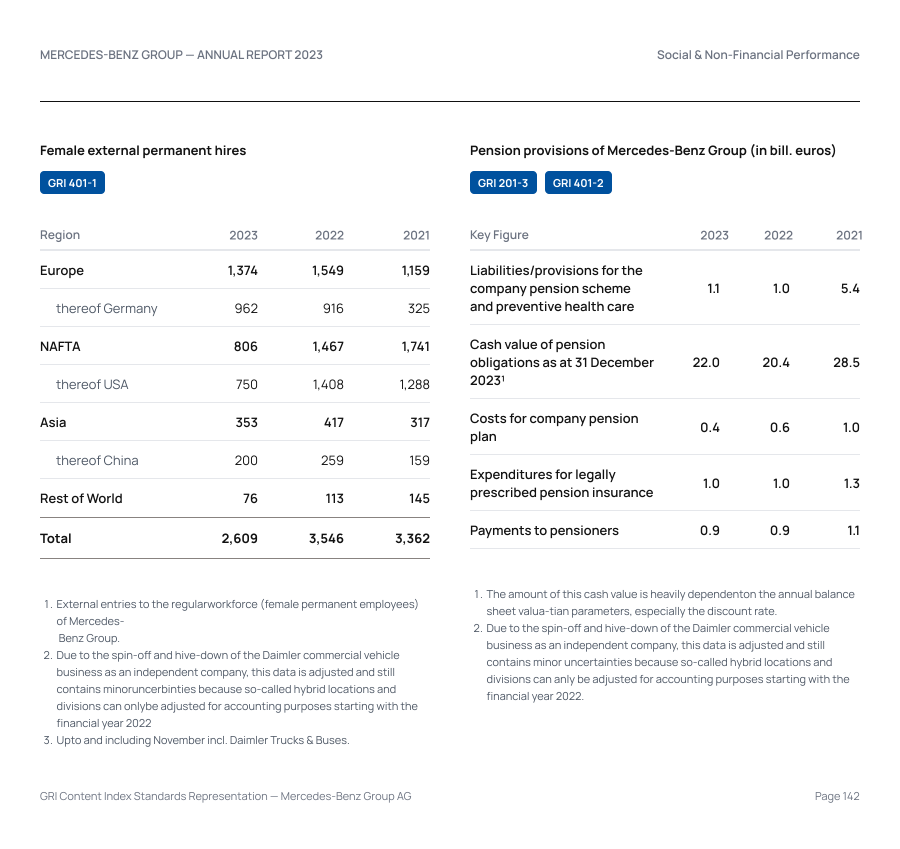
There are some PDFs where the table looks like plain text because there are no lines at all. PyMuPDF and pdfplumber cannot figure out the structure in these cases.
This is where Textract helps, it detects table structures even when there are no visible lines. It also performs well on forms and pages with unusual layouts.
Although it wont give you 100% accuracy in complex tables extraction but you can expect 80% minimum.
Pros
- Detects table structure even without borders
- Works on scanned PDFs and complex documents
- Handles forms, invoices, and unusual layouts better than local libraries
Cons
- Not 100% accurate for complex or multi-level tables
- Paid service (cost grows with large files)
- Slower than PyMuPDF and pdfplumber
So the extraction pipeline looks like:
If page has clean text – PyMuPDF
Else if page has structured tables – pdfplumber
Else if tables have no borders or layout is complex – AWS Textract
Intuz Recommends
If you’re extracting PDF content to another file, use Markdown. It preserves headings, tables, bold/italic text, and overall structure, making it easier for both humans and LLMs to read and understand.Always log which extractor was used for each pageThis helps debug extraction issues later.Example: “Page 13 extracted by Textract due to missing borders”
Step 2: Chunking Without Breaking Sentences
Chunking affects everything that comes after it. If your chunks are confusing or cut in the wrong place, the model will also get confused and give poor results.
The biggest mistake is splitting text exactly at some fixed number of words. This often cuts a sentence in the middle, and the LLM loses context. So instead of doing random splitting, use a simple rule: try to keep chunks for eg. around 800 tokens, but always break at the last full stop or exclamation mark before you hit the limit.
This method keeps the text natural and readable. Even if the chunk becomes 760 or 780 tokens, that’s completely fine. What matters is that the sentence is complete.
def smart_chunk(text, max_words=800):
    words = text.split()
    chunks = []
    start = 0
    while start < len(words):
        end = min(start + max_words, len(words))
        temp_chunk = words[start:end]
        # join temp chunk to check last punctuation
        joined = " ".join(temp_chunk)
        # find last period or exclamation
        last_punc = max(
            joined.rfind("."),
            joined.rfind("!")
        )
        if last_punc != -1:
            safe_chunk = joined[:last_punc+1]
        else:
            safe_chunk = joined  # no punctuation, fallback
        chunks.append(safe_chunk)
        start += len(safe_chunk.split())
    return chunks
Intuz Recommends
Keep the original PDF coordinates if possibleEven if you don’t use them now, they are extremely useful for:highlight-based answersvisual referenceslocating the text back in the PDF laterStore the chunk’s section headingThis is the most important metadata and improves semantic search accuracy by ~30%.
Step 3: Add Metadata (this makes search work)
Metadata is basically the extra information that helps the LLM or vector search understand where the chunk came from. Without metadata, all chunks look the same, and it becomes hard to find the right one later.
This becomes very useful when you do RAG.
Useful metadata:
- Page number
- Section heading
- File name
- Chunk ID
- Coordinates (optional)
- Table or paragraph
Looks like this:
{
  "chunk_id": "p12_c3",
  "page": 12,
  "section": "2.1 Financial Overview",
  "content": "The revenue for 2024...",
  "file_name": "report.pdf"
}
Step 4: Send Only the Right Chunks to the LLM
When a user asks a question, the mistake people make is sending the whole PDF or the full chunk set to the LLM. This is slow, expensive, and usually unnecessary.
Instead, the best approach is to:
- Convert the chunks into embeddings
- Store them in a vector database
- When the user asks a question, search for the closest chunks
- Send only those top relevant chunks to the LLM
This makes the response faster and more accurate. The LLM gets just the information it needs, no extra noise.
Conclusion
Working with PDFs isn’t difficult when you use the right approach. Each page behaves differently, so choose the best extractor for the page, create clean token-based chunks, and attach simple metadata.
Once extraction and chunking are done well, the rest is straightforward: generate embeddings, store them in a vector DB, and fetch only the most relevant chunks for the LLM. This makes the system faster, cheaper, and far more accurate.
A mixed extraction strategy, smart chunking, and good metadata are enough to avoid most of the common issues developers face with large PDFs in RAG systems.
Need help building a production-grade PDF RAG pipeline? Book a free consultation call with our experts to design extraction, chunking, and metadata strategies that scale reliably in real-world systems.
FAQs
How do you process very large PDFs without hitting LLM token limits?
Large PDFs should never be sent directly to an LLM. The practical approach is to extract text page-by-page, clean it, then split it into token-based chunks. These chunks are embedded and stored in a vector database. At query time, only the most relevant chunks are retrieved and sent to the LLM.
What is the best chunk size for processing PDFs with LLMs?
There’s no universal chunk size, but most production systems use 500–1,000 tokens per chunk with slight overlap. This balances context retention and retrieval accuracy. Token-based chunking is more reliable than character-based splitting, especially when working with mixed PDF content like tables, headings, and multi-column layouts.
Which tools are most commonly used to extract text from large PDFs?
Popular tools include PyMuPDF and PDFPlumber for text-heavy PDFs, and OCR tools like Tesseract or AWS Textract for scanned documents. Many teams use multiple extractors and apply them selectively per page. Choosing the right extractor is critical because poor extraction leads to inaccurate embeddings and weak LLM responses.
How do embeddings and vector databases help with large PDF processing?
Embeddings convert each PDF chunk into a numerical representation that captures meaning. These vectors are stored in a vector database like Pinecone, Weaviate, or FAISS. When a user asks a question, the system retrieves only the most semantically relevant chunks, keeping LLM calls fast, accurate, and cost-efficient.
Is it secure to process sensitive PDFs with LLMs?
Yes, if designed correctly. Most secure setups process PDFs in a private backend, store embeddings in controlled databases, and send only minimal context to the LLM. Enterprises often use self-hosted vector databases and private or API-based LLMs to meet compliance requirements like SOC 2, HIPAA, or GDPR.
Work with Intuz
Build Your PDF AI Pipeline
Get expert help designing a scalable RAG pipeline.
Let's Get Started
Share this article