FAQs On Mautic, The Ultimate Marketing Automation Software
Upgrade Mautic On Browser
Go to the login screen on the “Mautic Console” and sign in using the “Mautic Admin” account details.On the top left-hand-side, you will see a “Bell” icon that will show you a “Notification” when an update is available on the Mautic application.
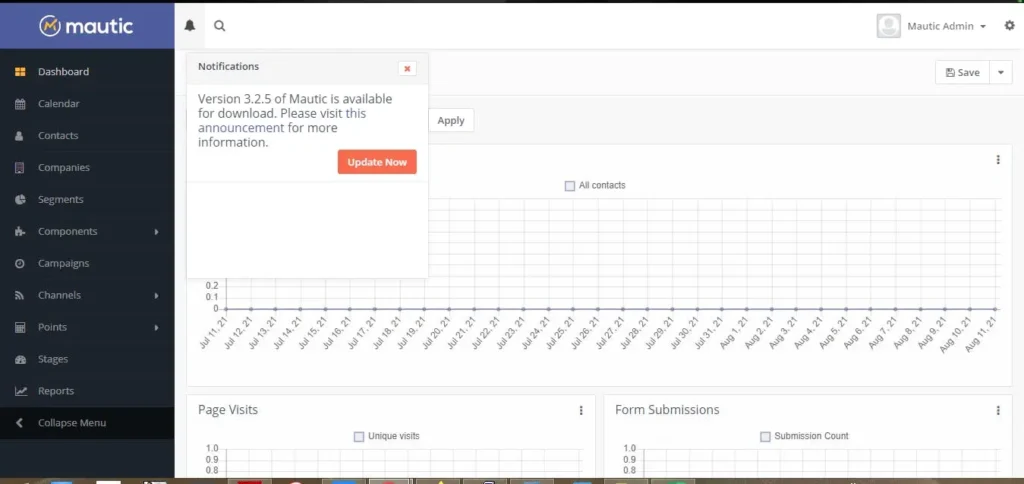
If you can see a “Notification,” click on “Update Now.” You will then be asked to take a backup of the current Mautic data and the functional database setup.
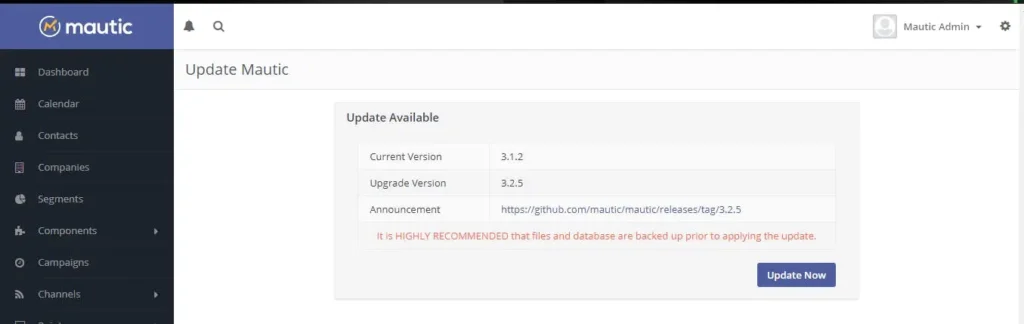
Once you take the backup, click on “Update Now” again to update the platform.
How To Upgrade Mautic In Command Line Interface
Log in to your Mautic Server Terminal. Navigate to the Mautic-powered root folder by running the command “cd /var/www/html/mautic”Check for Mautic updates by running the following command on your current version: “php bin/console mautic:update:find.”The output from this command will tell you if there are any updates available to apply. In case there are any updates for Mautic, run the following command to apply them: “php bin/console mautic:update:apply”
How To Configure SMTP For Outbound Mails In Mautic?
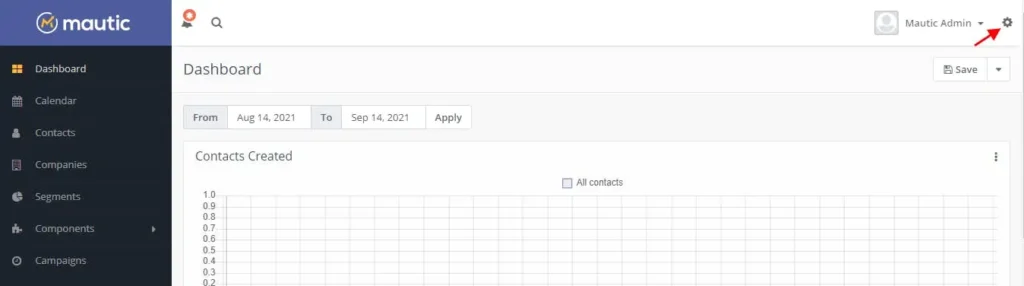
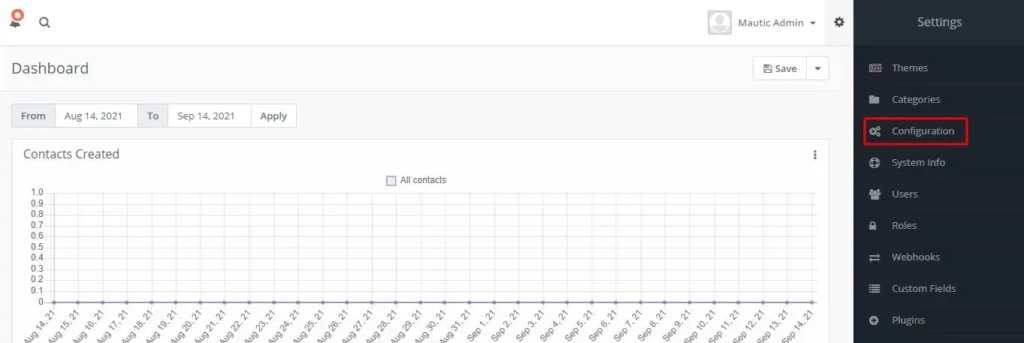
This is especially important if you have involvement in email marketing. Follow the steps given below to complete the process: Log in to the Mautic Console using the Mautic Admin account details. Click on the “Settings” icon on the top right-hand side of the application dashboard and select the “Configuration” menu.
Select the “Email Settings” tab on the left.
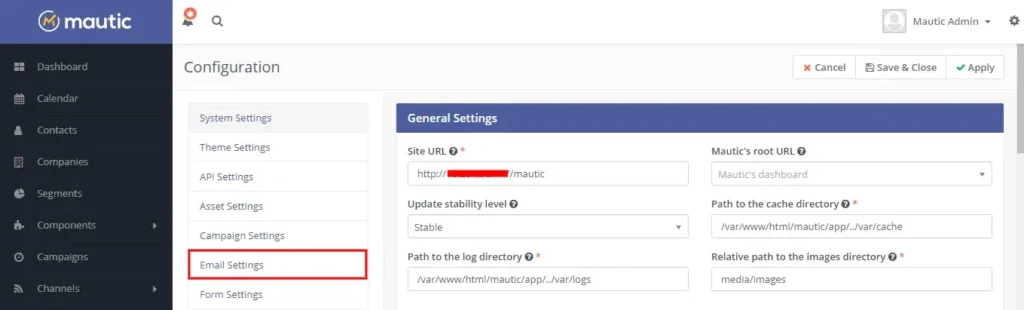
Select your preferred service from the “Service To Send Mail Through” tab on the dropdown menu.
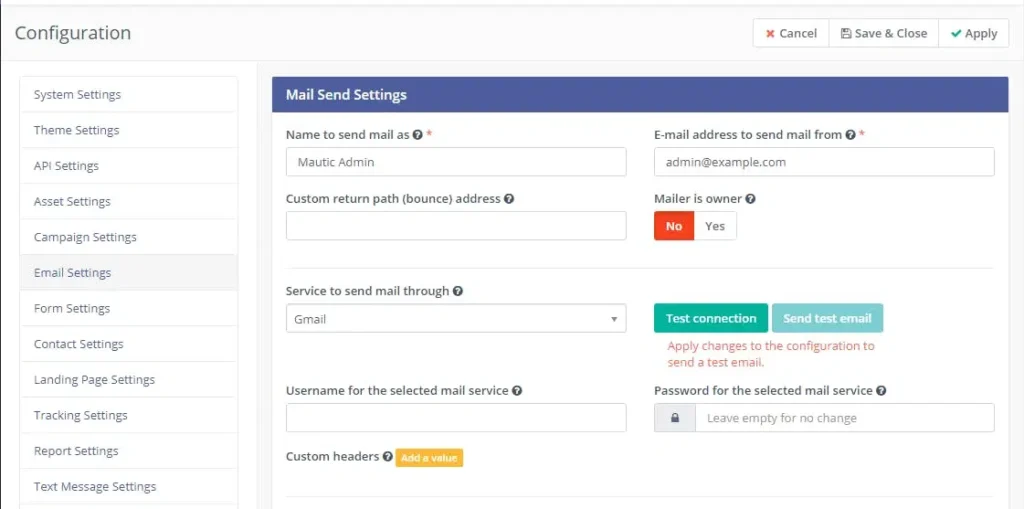
Enter the credentials for the selected service. For example, if you are using Gmail, enter your email username and password. Or, if you are using a custom SMTP (backend web) server, enter the server credentials, such as host name, port, encryption type and authentication mode accordingly. Once that is done, click on the “Test Connection” and “Send Test Email” buttons to verify your connection. Run your email campaign hassle-free.
How To Resolve the Mautic 500 Internal Server Error?
Steps are easy, but they differ depending on several factors: Scenario #1: When the password-based login for the MySQL user account and the password specified in the config file, “/var/www/html/mautic/app/config/local.php” on Mautic are different.
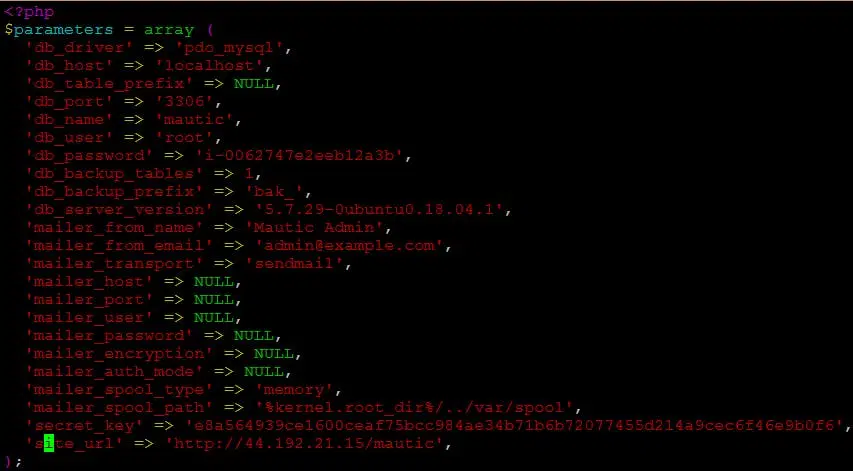
Double-check the error logs from the path “/var/log/apache2/error.log” and identify whether it is a MySQL password error. If it is a MySQL password error, then make sure that the former, along with the password specified in the “/var/www/html/mautic/app/config/local.php” file, match. If the site URL specified in the “/var/www/html/mautic/app/config/local.php” can be different from your actual Server IP.
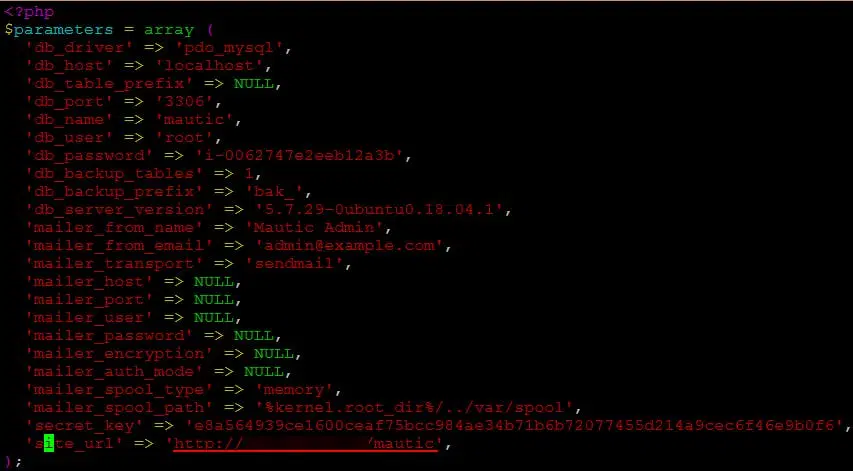
Scenario #2: When the site URL specified in the “/var/www/html/mautic/app/config/local.php” configuration file is different from your actual Server IP; further steps include: If, in this case, both site URL and MySQL password are correct, you may have to delete Mautic cache by running the command “rm -rf /var/www/html/mautic/app/cache/*,” and then try accessing the “Mautic Dashboard.”In rare cases, you may not be able to access the dashboard as specified in the usage instructions. To rectify the same, check the Apache configuration file of the marketing automation software, ”/etc/apache2/sites-enabled/000-default.conf,” and check for the “Document Root” file transfer as specified.
How To Fix The Database Connection Error Code On Mautic?
Follow the steps given below to rectify the issue:This generally happens when the MySQL user password does not match the password specified In the Mautic configuration file:“/var/www/html/mautic/app/config/local.php”Edit the configuration details using your favorite Text Editor (nano/vim) by running the command “vim /var/www/html/mautic/app/config/local.php,” and check the line ‘db_password’ => ‘mysqlpassword.’Make sure the password specified in the configuration file and the MySQL password of the user match. If the password matches and you still get the database connection error, delete the cache by running the command “rm -rf /var/www/html/mautic/app/cache/*.” This will keep your deployment issues in check.


