




According to statistics, there are currently over 1.8 million apps in the Apple store and over 2.4 million apps in the Google Play store. In 2018, the global app downloads reached 194 billion where users spent $101 billion on these downloads.
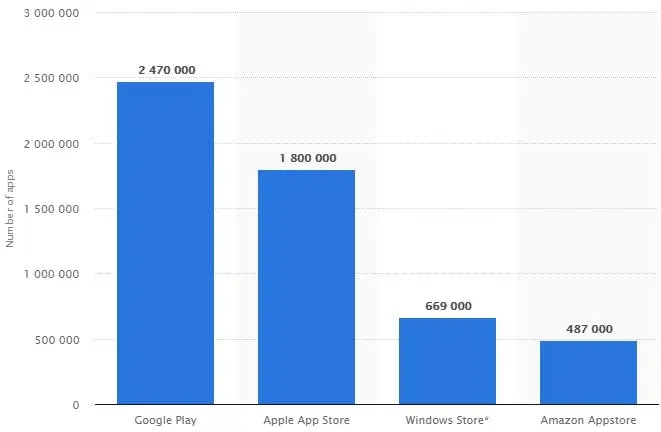
These statistics indicate an increasing trend on the need for businesses to adopt mobile apps as a strategy to reach more clients.
In this guide, we help iOS app developers understand various steps of the iOS mobile app development journey as well as the various tools available at their disposal to leverage this boom in demand. We also seek to help business owners make informed decisions when it comes to developing an iOS app for their business.
Here are the major topics we’ve covered in this iOS app development guide.
Show
- Swift outperforms Objective-C in speed (2.6x faster), memory management, and syntax simplicity — making it the preferred language for modern iOS development.
- Developers can build iOS apps on Windows using workarounds like virtual machines, renting a Mac via cloud services (MacinCloud, MacStadium), building a Hackintosh, or using cross-platform tools like Xamarin.
- Performance optimization in Swift involves techniques like using build settings, avoiding print statements in release builds, inlining code, and leveraging Grand Central Dispatch (GCD) to offload heavy tasks from the main thread.
- iOS app cost varies widely — from near-zero (self-built) to hundreds of thousands of dollars — depending on developer type, app complexity, features, platforms, and design requirements.
- When selecting an iOS app development company, key factors include relevant portfolio experience, creativity, cost-effectiveness, company accessibility, technical expertise in iOS frameworks, and proven timeliness of delivery.
Programming languages used to develop iOS apps
1. Swift vs Objective C
With the introduction of Swift, iOS mobile app developers are torn on whether to adopt Swift or stick to the stable Objective C.Swift vs Objective C is an ongoing dilemma among developers. Every ios app developer desires a programming language for that is easier to learn, stable, has a simple syntax, secure, and has a helpful compiler.
Bearing that in mind, now let ’s discuss which programming languages you should adopt to build your mobile app.
Performance
Apple affirms that Swift is 2.6 times faster than Objective-C. Whereas this might be true, the difference in performance can be attributed to several factors.
First, you should understand that, Objective-C because it is naturally not fast.
Let me explain why. Objective-C utilizes the runtime code compilation instead of the compile time. This means that there is an extra loop involved during compilation while using Objective-C.
What do I mean by an extra loop? Every time Objective-C object calls another object during compilation, and the extra loop introduces an extra level of indirection.
On the other hand, Swift is generally made to be swift. Data from several tests suggest that the performance of FFL algorithms is at par with C++. However, in the Mandelbrot algorithm, Swiftui app performs better than C++.
Safety
Swift is an upgrade of Objective-C, and its main purpose was to eliminate drawbacks found in C++.
Therefore, Swift was naturally meant to enhance safety for iOS products. First, Swift prevents errors as a result of type-safe and memory-safe language.
What do I mean by this? Swift helps to prevent memory safety by avoiding vulnerabilities associated with dangling pointers. Swift does not use pointers, and in case you fail to find a pointer, the app mainly crashes. Lack of pointers in Swift helps programmers to fix bugs quickly and keep the code clean, making it easier to understand.
On the other hand, Objective-C uses pointers that can induce vulnerabilities in your app. In Objective-C, when you miss a pointer when calling a method, nothing happens. This means that the code will execute error-free but with vulnerabilities. The expression and line of code in the object becomes a no-operation (NOP). A NOP is a dangerous situation because it makes it difficult for programmers to find and fix bugs.
Maintenance
Maintaining files in Objective-C is pure stress. As a mobile app developer, you must maintain two separate files of code to enhance efficiency and reduce the application development time. Developers must also synchronize the method names and comments manually.
On the other hand, Swift is a darling for an iOS developer because its easier to maintain. Swift uses the LLVM compiler and Xmind to accomplish the incremental build automatically. This means that the Objective C header (.h) file and implementation (.m) file are combined automatically in a single .swift program code file.
Syntax
When developing Swift, Apple’s main goal was to provide developers with a simple and easily understandable programming language for iOS development. Swift adopts all industry standards to help developers write clean code easily.
    const int number = 10;
    double itemPrice = 25.55;
    NSString *swiftMessage = @"Swift 5 is awesome.";
    NSString *questionText = @"What do you thing about it?";
    NSString *message = [NSString stringWithFormat:@"%@%@",swiftMessage, questionText];
    NSLog(@"%@", message);
    let number = 10
    var itemPrice = 25.55
    let swiftMessage = "Swift 5 is awesome."
    let questionText = "What do you thing about it?"
    let message = swiftMessage + questionText
    print(message)
Objective C is built on the C programming language, and as a result, it has a very complex structure. First, it has a lot of @ symbols, lines, semicolons, and parentheses while using else statements.
On the other hand, Swift has a simple syntax that resembles English. Swift requires iPhone app developers to substitute @ with a comma to separate a list of parameters. Developers who use Swift write a few lines of code compared to Objective C for the same application.
Code complexity
Objective C requires developers to use a lot of strings when linking different pieces of information. As a mobile app developer, you also get a headache while using special tokens like %s, %d, %@, and use commas to separate variables.
Any wrong usage of a symbol or ordering of a list of variables can cause your application to crash.
Swift, on the other hand, requires less code while implementing loop statements and handling strings. When using Swift, developers do not need to memorize tokens because Swift employs string interpolation. Interpolation helps to eliminate common app crashes, as evident in Objective C.
Memory management
Both Objective C and Swift employ ARC that helps to manage memory without any programmer effort. However, in Objective C, the code is not supported by procedural C or other crucial APIs like core graphics.
As a result, Objective C has extensive memory leaks that hinder efficient memory management.
Swift also employs ARC. Unlike Objective C, Swift supports ARC for all APIs facilitating efficient memory management, just like with Cocoa Touch.
Swift ensures that the ERC is complete with the object-oriented code paths saving iOS developer’s time.
Dynamic libraries support
Dynamic libraries represent the executable parts of code. The main difference between dynamic and static libraries is that dynamic libraries can be linked to any code during run-time. One major issue with Objective C is that it uses static libraries and does not support dynamic libraries.
Let me tell you, this is a problem. Static libraries are large in size, mainly because external programs are built in the executable files. Dynamic libraries are smaller in size compared to static libraries because only a single copy of the dynamic library is stored in memory during run-time.
Swift supports dynamic libraries. The dynamic library is loaded into an application memory during run-time, which helps to enhance performance. Connecting the dynamic memory directly to the app ensures that they are updated independently from the Operating System.
The use of dynamic memory helps developers to reduce the size of the application and enhance the loading speed of the app contents.
Long-term outlook
Objective C was the main programming language for Apple products. The majority of programmers are reluctant to adopt Swift because they had invested a lot of time and resources in learning Objective C. Even though Apple seems to be encouraging new and existing programmers to learn Objective C, there are no signs to indicate that Apple will discontinue supporting Objective C.
Swift is a young programming language, and Apple has invested a lot to ensure its success. It is an upgrade of Objective C and currently has all the programming features lacking in Objective C. There is also an increasingly vibrant community that is supporting Swift. Recently, Swift started supporting the Linux environment indicating that Swift will become a popular language to develop iOS applications.
Community support
Currently, Swift has overtaken Objective C in terms of community support. According to a StackOverflow programming language survey, Swift is gaining traction quickly by Objective C programming and is still holding on to Objective C.
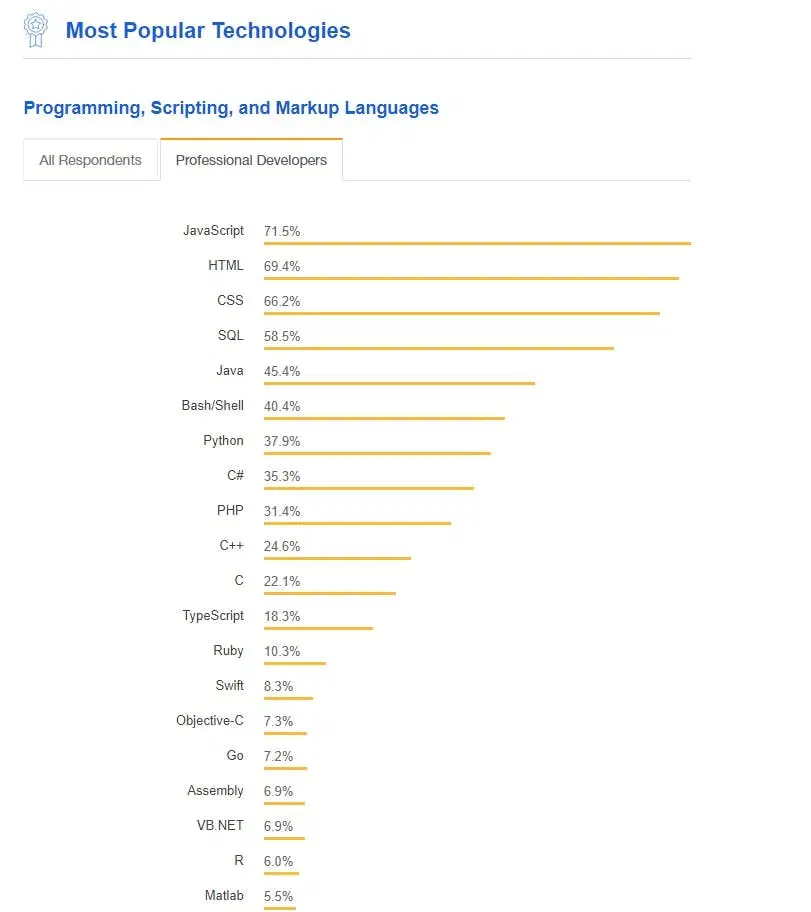
One main reason why programmers have not yet embraced Swift is that the opportunity cost involved in learning Swift outweighs the benefits achieved. Also, Swift is a young language, and veteran developers are waiting for apple to start using it on a large scale for them to shift.
Swift is open source, and as a result, it has attracted massive community support. The extensive feedback given on the forums helps Apple continuously fix bugs on time.
Which language is better?
As a programmer, it is difficult to determine which programming language for iPhone and iPad apps is better than the other. The main reason being it all depends on several considerations and factors.
As a result, you need to ask yourself the following questions.
- Which programming language does your team know?
- What is the project duration?
- Do you have the resources to hire new iOS developer?
- What are your current plans?
- How big is your project?
Answering those questions, among others, will help you decide which programming language to adopt.
2. Swift vs Python
The popularity of programming languages changes with time-based on their applicability and development of new languages. However, over the past few years, Python and Swift have proven to be a major force to reckon in the programming world. Their popularity and applicability have increased by leaps and bounds.
According to PYPL statistics, Swift is the second most growing programing language for developing iOS apps after Python.
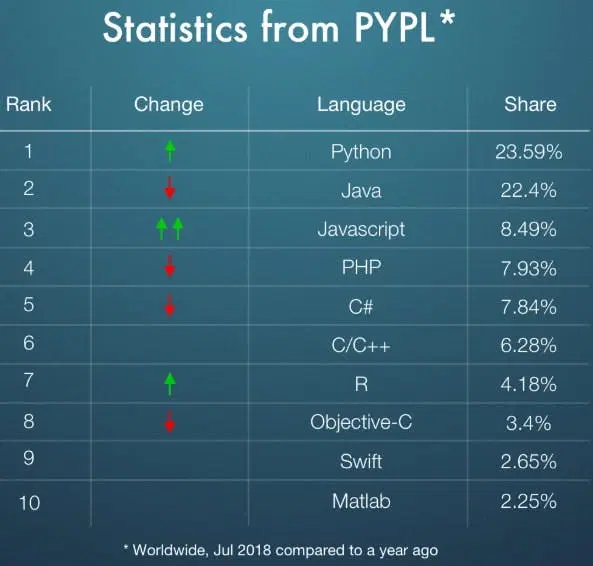
Python was developed in 1991 and was meant to be used as a scripting language. However, more Python libraries were developed that allowed developers to use it for other purposes like machine learning, data science, and back-end development.
What many people don’t know is that Python can also be used to create mobile applications.
Surprising, right?
Historically, Python did not have an edge in developing mobile GUI applications. However, two frameworks: Kivy and Beeware have changed the narrative.
Before we discuss which is better between Python and Swift, let us discuss Kivy and Beeware briefly.
Kivy is an open-source Python library that allows developers to develop cross-platform GUI mobile apps. As a developer, you can use Kivy to create iOS and Android app.
Kivy does not allow developers to build native apps but provides custom inbuilt UI toolkit that provides UI elements such as forms, text boxes, and buttons among others. As a result, the UI widgets are not rendered using native platform UI controls. Kivy provides a good platform for developing games that are not too much UI centric.
The BeeWare project is a Python framework that allows developers to create native app.
The main difference between Kivy and BeeWare is that BeeWare employs the platform-specific native UI toolkit while Kivy uses a custom UI toolkit for developing android or iOS mobile application.
However, BeeWare is a new framework and therefore, there are constant API changes that increase a developer’s workload.
Library support
Python has more support from 3rd party libraries such as database compared to Swift. As a result, Python is better with back-end applications rather than front-end.
Security
Swift creates more secure apps compared to Python. Swift employs type strictness. This means that the Swift compilers help developers to find bugs easily.
Python, on the other hand, does not employ type strictness during compilation. As a result, the create app might be vulnerable.
Performance
Swift is based on the C programming language. When creating Swift, Apple wanted a language that would be faster than C. Actually, Swift is 2.6x faster than C and 8.4x faster than Python.
Now, to the main question, between Python and Swift, which should you choose?
To be honest, Swift offers better-advanced features, functionalities, and support compared to Python.The fact that Swift is purposely meant for iOS application means that you can create better native apps compared to using Python.
However, the usage of Python in developing mobile apps might increase in the future with the emergence of Kivy and BeeWare frameworks. With its increased applicability in data mining and AI, developers might be thrilled to use one language to develop AI-related mobile apps.
3. Swift vs Java
Java has been in existence for years and has formed the basis for custom mobile app development. According to a survey, Java was ranked 20th while Swift was ranked 33rd among programming languages recommended for first learners.
Both Java and Swift are object oriented.
Platform
Java is not platform dependent. During compilation, Java codes are compiled into bytecodes that can run on any machine. This means that Java is a write-once, run-anywhere language.
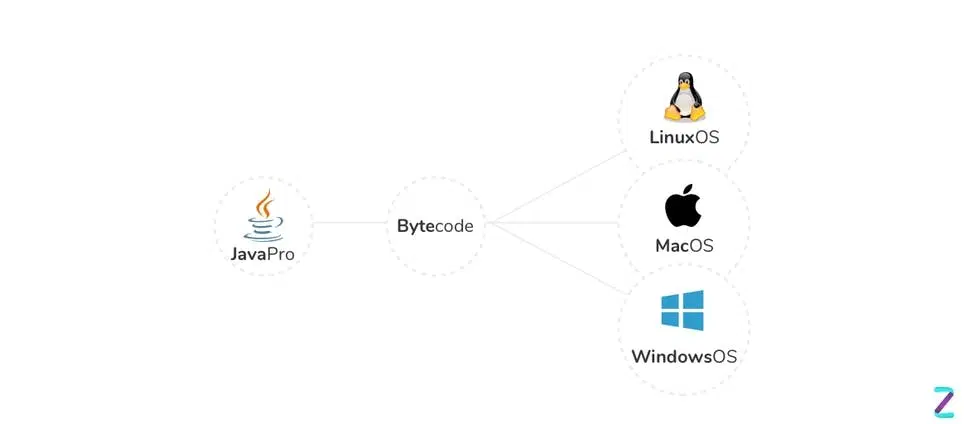
On the other hand, Swift is dependent on iOS and MacOS.
Security
In terms of security, Java enhances its security by using the Java runtime environment. Java is more secure compared to Swift. During Exception Handling in Java, the code does not crash but Exception handling in Swift can lead to crashing.
Performance
In terms of performance, Swift is faster compared to Java. To enhance its performance, Java uses the just-in-time compiler. Swift is built on the basis of the C programming language and thus faster than Java.
Swift best practices to ensure high-performance code
Naturally, Swift is built to be swift. However, every programmer desires the best performance. Therefore, there are a few ways you can use to enhance the performance of iPhone application development.
Use the build settings to adjust the optimization level
One strategy that iPhone app developers can use to enhance optimization when they develop iPad applications is by letting the Xcode optimize automatically.
The Xcode compiler is built in such a way that it can determine when to ignore irrelevant functions or directly call methods that were not subclassed. However, letting Xcode handle optimization increases the compilation time or the size of the solution.
So, how can you adjust the optimization settings? Go to build settings-> Apple Clang – code generation -> Optimization level.
The optimization level gives you seven options:
- None -O0
- Fast -O, O1
- Fast -O1
- Fastest -O3
- Fastest, Smallest -Os
- Fastest, Aggressive Optimizations -Ofast
- Fastest, Aggressive Size Optimizations -Oz
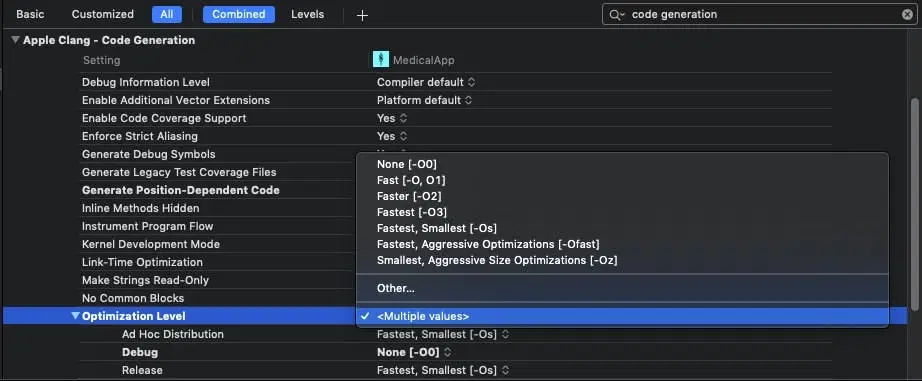
At this point, you can select the option that suits your programming needs.
However, most enterprise iPhone/iPad app developers optimize for speed for release builds, and others optimize for size during debugging.
Use Final and Private for Methods and Classes
The Swift Optimization level also deals with direct or indirect call methods. As an Object-Oriented language, Swift programmers can use Dynamic Dispatch to subclass and override methods to achieve more functionalities.
Dynamic Dispatch is an algorithm that uses the vTable (Virtual Table) to determine the method to be invoked anytime a message is sent to an object.
One crucial point you should note is that, during iPhone app development, when a developer calls a method to return to its address, the method must search the virtual table for its address.
At the same time, the Dynamic Dispatcher must also lookup for a subclass to confirm if the method has been overridden and return another method.
Since subclasses can also override methods, the Dynamic Dispatcher must lookup for the method iteratively until it gets to the bottom of it.
The Dynamic Dispatcher iterative process is a very expensive task.
To optimize this whole process, a Swift programmer can include the attribute final at the beginning of a method, variable, or a whole class.
class AccessMethod: NSObject {
  final func finalResult(x : Int)->Int {
  return x + 1
}
func intermediateResult(x : Int)->Int {
  return x + 1
}}
class PerformanceTuningTests: XCTestCase {
  // this test runs 30% faster than "testIntermediateResult"
  func testFinalResult() {
  	let accessMethod = AccessMethod()self.measure {
  		for _ in 0...100000000 {
  			_ = accessMethod.finalResult(x: 100)
  		}
  	}
  }
  func testIntermediateResult() {
  	let accessMethod = AccessMethod()self.measure {
  		for _ in 0...100000000 {
  			_ = accessMethod.intermediateResult(x: 100)
  		}
  	}
  }
}
Optimizing your Swift code using build settings guarantees that the final attribute executes a direct call without looking for subclass implementation.
Avoid Print in release builds
When developing mobile apps, printing to console helps in debugging. However, some developers leave the print commands floating in the code.
The print commands are mainly written on the console, which consumes large disk space, ultimately affecting performance.
class PerformanceTuningTests: XCTestCase {
	// The test with print logs runs 1600 times slower!
    func testWithPrintLogs() {
    	let accessMethod = AccessMethod()self.measure {
        	for _ in 0...100000 {
            	_ = accessMethod.returnValue(x: 100, withPrint: true)
            }
        }
    }
	func testWithOutPrintLogs() {
    	let accessMethod = AccessMethod()self.measure {
        	for _ in 0...100000 {
        		_ = accessMethod.returnValue(x: 100, withPrint: false)
            }
        }
    }
}
After analysis, the above code with a print call ran 1600 times slower. Shocking, right?
Now, to avoid this, I suggest that you should never call print directly. But you use a class to wrap it and then include a class inside that class.
func printToConsole(message : String) {
	#if DEBUG
    	print(message)
    #endif
}
Inline your code
When programming, it is always crucial to subdivide your code into functions where each function handles a specific task.
However, creating multiple small functions affects performance. Performance is affected because the extra functions are added to the function stack. As a result, the virtual table uses the dynamic dispatch to call each function.
Therefore, to enhance your performance, you can squeeze your code and inline your method for faster performance.
However, when you inline your code, you must be ready to give up your clean code.
It is a trade-off between clean code and having better performance.
class PerformanceTuningTests: XCTestCase {
	func testStackResult() {
		let accessMethod = AccessMethod()self.measure
		{
			for _ in 0...100000000 {
				_ = methodAccess.stackResult(x: 100)
			}
		}
	}
	func testInlineResult() {
		// This test runs faster
		let accessMethod = AccessMethod()self.measure {
			for _ in 0...100000000 {
				_ = methodAccess.inlineResult(x: 100)
			}
		}
	}
}
class AccessMethod: NSObject {
	func stackResult(x : Int)->Int {
		return checkXValue(y: x)
	}
	func inlineResult(x : Int)->Int{
		// Add your code here
	}
	func checkXValue(y : Int)->Int {
		// Add your code here
	}
}
Dealing with Arrays
As a programmer, performance is critical when dealing with arrays. If not properly handled, arrays can induce performance issues. Now, here are a few ways that you can use arrays to optimize your code.
When iterating an array, use withUnsafeBufferPointer
At times during iPhone application development, programmers tend to forget or disregard memory issues or security issues because they assume Swift is handling everything. In the long run, these assumptions introduce performance cost.
One way that you enhance performance; though not an advisable way is to trade safety for performance.
This can be achieved by using the withUnsafeBufferPointer method to help programmers find the array of pointers for the array elements.
You should also be cautious because if the elements are deallocated, your code might crash when running it.
Contiguous Array
Generally, arrays use memory blocks to store their objects. As a result, whenever you add a new object into an array, it gets an unallocated memory block, allocates, and appends it to the array.
This strategy enhances performance but induces inefficiency during iteration.
We can overcome the iteration inefficiency by using ContogousArray.
ContagiousArray ensures that every item in an array is contagious with each other because contagious items assist in identifying the next element.
However, forcing items to be contagious introduces array management constraints.
Use a linked list instead of an Array
As a programmer, using arrays is always a simple task, but implementing linked lists brings more efficiency.
You should know that inserting an item in a linked list is simpler compared to an array because, in a linked list, all items are connected. In a linked list, you just need to connect the pointers properly and you are good to go.
Inserting or appending items in an array is more expensive than in a linked list. However, sorting items in an array is faster compared to linked lists.
Limit Protocols to Class Only if Possible
When your protocol is implemented through classes, ensure that you have marked it as a class.
Let me tell you why this is important.
Marking the class as a protocol informs the compiler that the implemented protocol is using classes only. As a result, the compiler optimizes the ARC (Automatic Reference Counting), which in turn improves your code performance.
class PerformanceTuningTests: XCTestCase {
	func testStackResult() {
		let accessMethod = AccessMethod()self.measure
		{
			for _ in 0...100000000 {
				_ = methodAccess.stackResult(x: 100)
			}
		}
	}
	func testInlineResult() {
		// This test runs faster
		let accessMethod = AccessMethod()self.measure {
			for _ in 0...100000000 {
				_ = methodAccess.inlineResult(x: 100)
			}
		}
	}
}
class AccessMethod: NSObject {
	func stackResult(x : Int)->Int {
		return checkXValue(y: x)
	}
	func inlineResult(x : Int)->Int{
		// Add your code here
	}
	func checkXValue(y : Int)->Int {
		// Add your code here
	}
}
During an app development process, you can solve performance issues by adjusting different app architecture techniques, caching, or using algorithms.
However, squeezing your Swift engine is a sure way of achieving optimal speed.
Tips and tricks to enhance iOS/iPhone app performance
There are several tips and tricks that you can use to improve the performance of the iOS app
Use a launch screen that looks like the initial screen
When a user opens an app, the launch screen appears first that is quickly followed by the Start screen. The change between the two screens must take minimal time so that it does not give the user the impression that the app is slow.
When designing the launch screen, make sure it is almost identical to the first screen of the app. when the two are loading, it gives the user an impression that the app launches quickly and is ready to use. The user perceives the app to be very responsive.
When you have a launch screen that looks different from the first screen, the user will experience the unpleasant change from one screen to another. The user will notice the time taken to change from one screen to another and conclude that the app is not very responsive.
You should not use the launch screen for any artistic expression, but it should solely enhance the perception that the app launches quickly and is ready to use. Also, you should not put any text or use the launch screen for loading or advertisement purposes as it may give the user a feeling that the solution is slow.
Sometimes when using a multitasking screen, upon resuming the app, it shows a different screen from the one in the multitasking view. This means that state restoration has not been implemented in the app. The data displayed in the multitasking view was lost when the app was terminated in the background and could not restore to the state the user left it in. When this happens, the user perceives that the iPad app is slow and unresponsive.
State preservation and restoration
Apps installed on devices such as iPhones and iPads are often interrupted by messages, calls, and alarms, among others. Your app should restore to the state the user had left it. In some cases, like where there is a shortage of memory, the operating system might remove the app from memory, making it lose track of the last UI state. In such a case, your app should be able to preserve the last state to avoid losing the user’s progress.
When the user is multitasking, they see the other apps placed in the background. The user assumes that the apps are running in the background, but in the real sense, they might be terminated to free up some resources. Those apps take a snapshot of the last state the user left them in, and that what the user sees first and assumes that the app is still running.
You should employ this trick when you develop iOS apps. iOS device supports the use of screenshots to give the user the impression that the app is still running in the background, whereas it has been killed or restarted.
You should use UIkit as it preserves the state of the app and view controllers, and saves them in an encrypted file stored on the disk. When the user resumes an app, the UIKit reconstructs the views and view controllers using the data that was stored on the drive.
Use opaque views
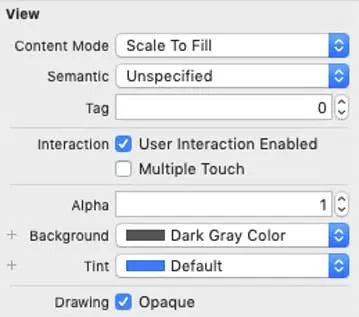
Opaque views are not transparent, meaning that they do not allow the user to view any UI elements placed behind them. Setting a view to opaque can either be done in the interface builder, as shown in the image below, or it can be coded.
protocol Work : class {}
You can code an opaque view using the isOpaque property of UI view as shown in the code below :
view.isOpaque = true
When you set a view to opaque, it makes the drawing system to optimize the drawing performance while rendering the screen.
If you use non-opaque views, the iOS platform will perform extra tasks of calculating what should be displayed behind the different layers of transparent views. With opaque views, the drawing system puts the current view in front and saves the iOS from performing the extra tasks of blending more layers behind the non-opaque one.
To check which layers the iOS simulator is blending, you go to Debug, then check the color blended layers option as shown below.

Some views will appear red and others green. The red view will be indicating a non-opaque view and that there are layers blended behind it. Green shows that the view is opaque and no layers blended behind it.
If transparent views have to be used, then limit the number of views highlighted in red. When you limit the views in red, you spare the iOS the work of blending the two layers. This optimizes the app performance. To reduce the red views, you change the code to white.
label.backgroundColor = UIColor.clear to label.backgroundColor = UIColor.white.
The use of opaque views makes a significant improvement in the performance of the app. When you set the UIView to opaque, you are instructing the drawing system to provide a solid background color.
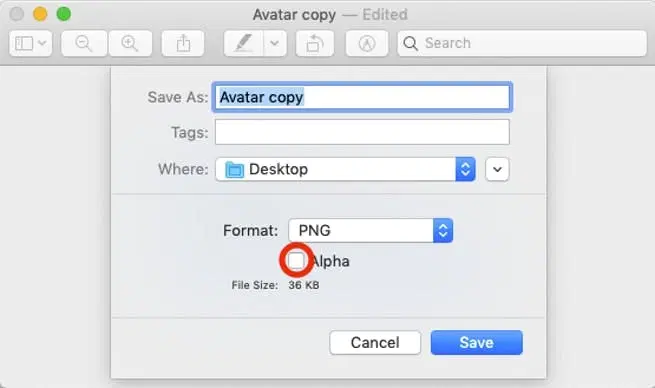
You should recheck the view as the simulator may still show red in the image view, even after you set UIImageView. Typically, that occurs if the image used has an alpha channel. You should remove this alpha channel by using the preview app to duplicate the image (Shift ⇧ + Cmd ⌘ + S). The next step is to uncheck the “Alpha” box and then save.
Use Grand Central Dispatch (GCD)
Have you ever used an app that becomes unresponsive all at once? Sometimes the iPhone app becomes unresponsive to the user’s touch input, and it hangs. This mostly happens when heavy tasks are running on the main thread.
UIKit only runs on the main thread, and therefore assigning any heavy processing to the main thread slows down the UI and may make it hang. The UIkit uses the main thread to capture the user input and produce output and draw the screen.
To make the app more responsive, you remove the heavy processing from the main thread and assign them to run on background threads. Such operations include heavy input/output operations, networking, and complex calculations.
In the main thread, UIKit tasks usually alternate with light tasks in small intervals. When a heavy task executes on the main thread, the UIKit has to wait for it to finish so that it can execute its tasks. This time is when the app acts as if it has hung.
The GCD will help you in moving the heavy tasks to the background. Basically, GCD is another name for the libdispatch library, which provides concurrency support by moving some tasks to the dispatch queues managed by iOS. These are codes for used for switching queues
Any other tasks that do not have to run synchronously and interact with the UIKit, is switched to the background threads. This ensures that the UI does not become unresponsive while waiting for other tasks to finish running on the main thread.
You should ensure that no UIKit tasks run on the background threads. Modifying the UIKit objects to run on the background thread leads to the UIKit updating appropriately and result in crashing.
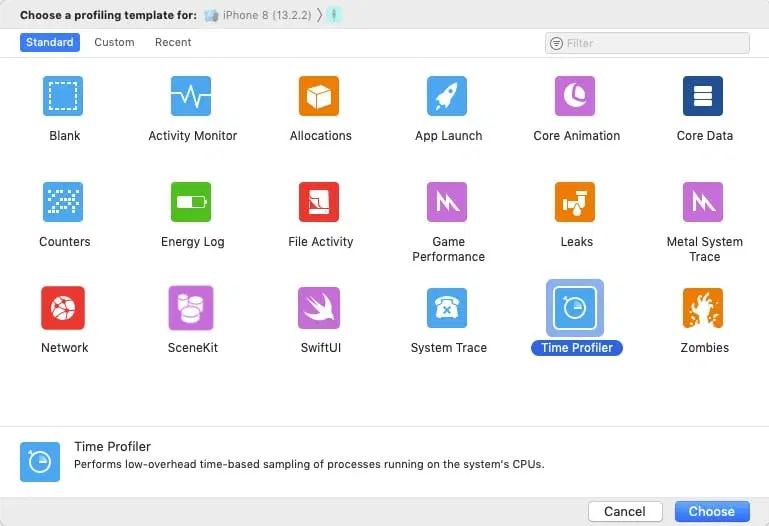
Use Xcode Instruments to improve performance
Instruments is a powerful tool for analyzing performance and profiling. Instruments profile your app using different metrics such as CPU usage, file activity, and memory usage, among others.
The instruments will help you make the necessary changes to your app to improve performance.
// Switch to a background thread to perform a heavy task.
	DispatchQueue.global(qos: .default).async {
    	// Add your code here to perform on background thread
        // Switch back to main thread and perform UI Changes
        DispatchQueue.main.async {
        	// Add your code here to perform on main thread
        }
    }
iOS app development is much more than writing code. It requires careful planning, selecting the right technology stack, creating a seamless user experience, rigorous testing, and ongoing maintenance. Whether you are building a simple MVP or a feature-rich enterprise application, success depends on aligning your app with business goals and Apple’s strict quality standards. By choosing the right development approach and experienced partner, you can launch a secure, scalable, and high-performing iOS app that delivers measurable business value.
Ready to Build Your iOS App?
Have an idea for an iPhone or iPad app? Intuz helps startups and enterprises design, develop, and launch custom iOS applications powered by Swift, AI, IoT, and cloud technologies.
Talk to our iOS experts today for a free consultation and get a tailored roadmap, timeline, and cost estimate for your app project.
FAQs
How can I build an iOS app on Windows?
Xcode runs only on macOS, so you cannot build iOS apps directly on Windows. However, you can use a virtual macOS machine, rent a cloud-based Mac, create a Hackintosh, or use cross-platform tools like Xamarin or React Native.
How do I make my iPhone app more user-friendly?
Create a fast, intuitive app with clear onboarding, simple navigation, minimal typing, and responsive performance. Use visuals, short forms, and auto-complete to reduce effort and improve the overall user experience.
Where can I learn iOS app development?
You can learn iOS development through Apple Developer, Swift.org, TutorialsPoint, Kodeco, and GitHub. These platforms offer beginner-to-advanced tutorials covering Swift, Objective-C, Xcode, and real-world coding examples.
How much does it cost to develop an iPhone app?
A simple iOS app may cost $5,000–$20,000, while complex apps with custom features can exceed $100,000. The final cost depends on design, functionality, integrations, and the experience of the development team.
How do I choose the right iOS app development company?
Select a company with a strong portfolio, relevant industry experience, creative developers, transparent pricing, technical expertise, and a proven record of delivering high-quality apps on time.
Work with Intuz
Build Your iOS App the Right Way
Get a free consultation and scope estimate for your app.
Let's Get Started
Share this article