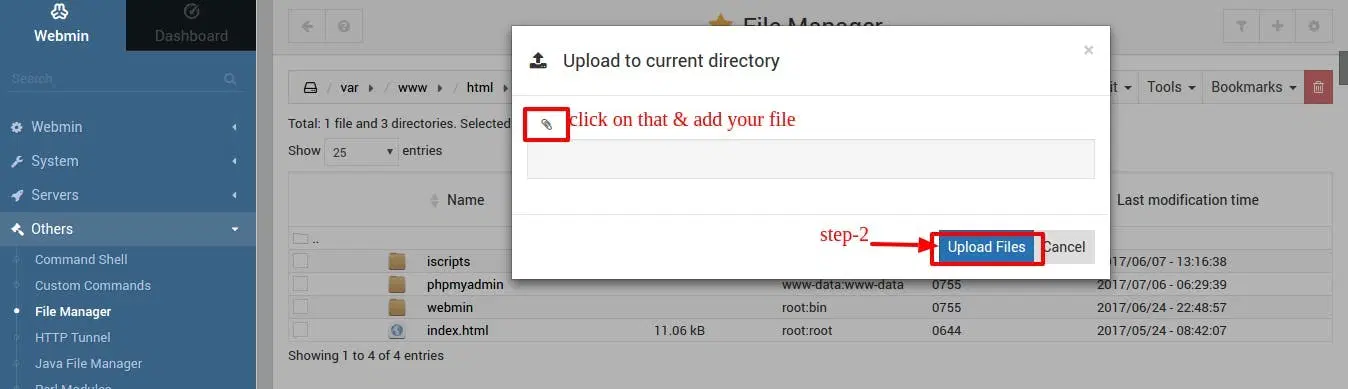
Steps to Transfer File Via Webmin
Method 1: Steps to transfer a file through the Upload and Download Method
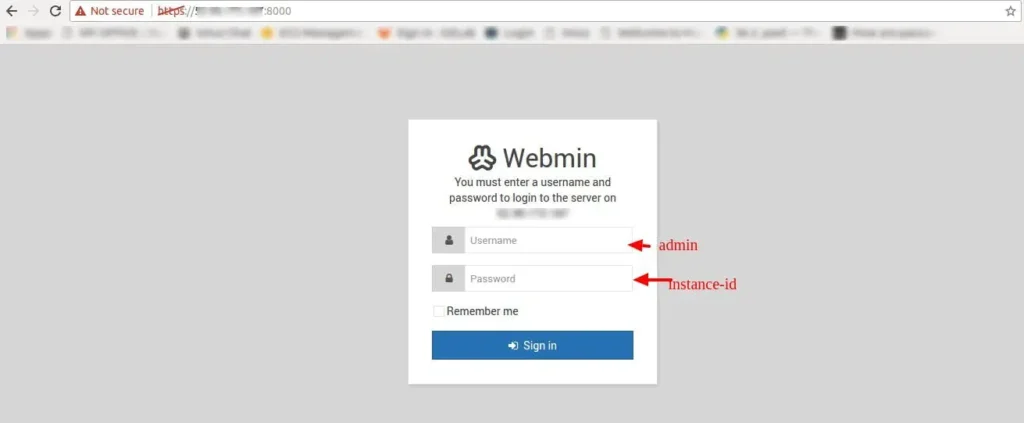
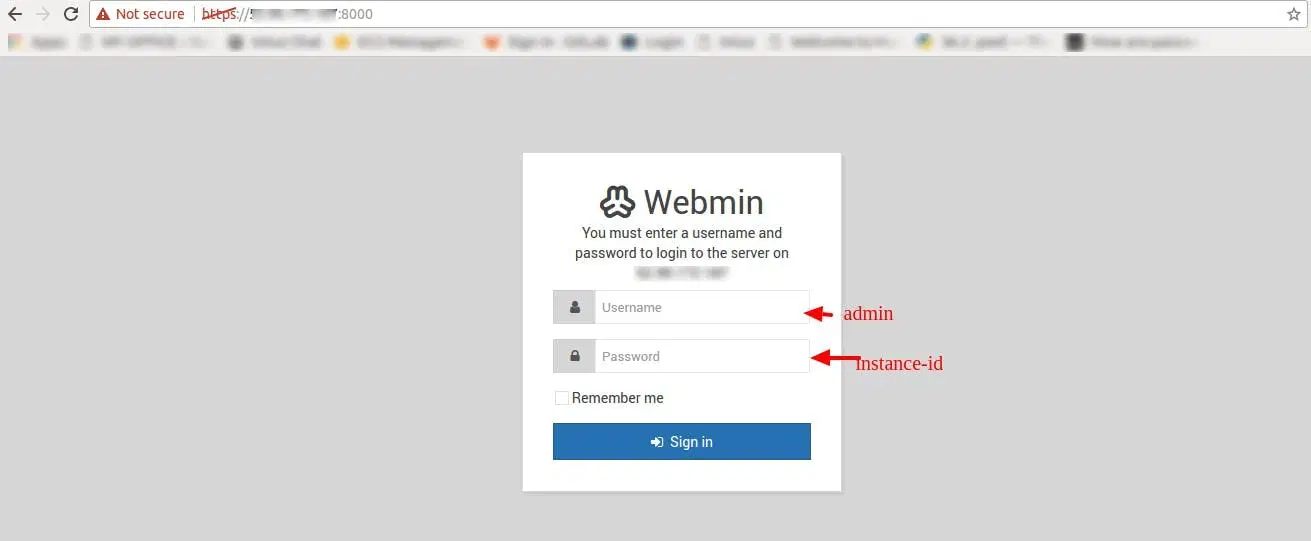
1. Enter the URL in the browser i.e http://instance-public-ip:8000 or https://instance-public-ip:8000. Then, Enter the username as admin and password as “instance-id”
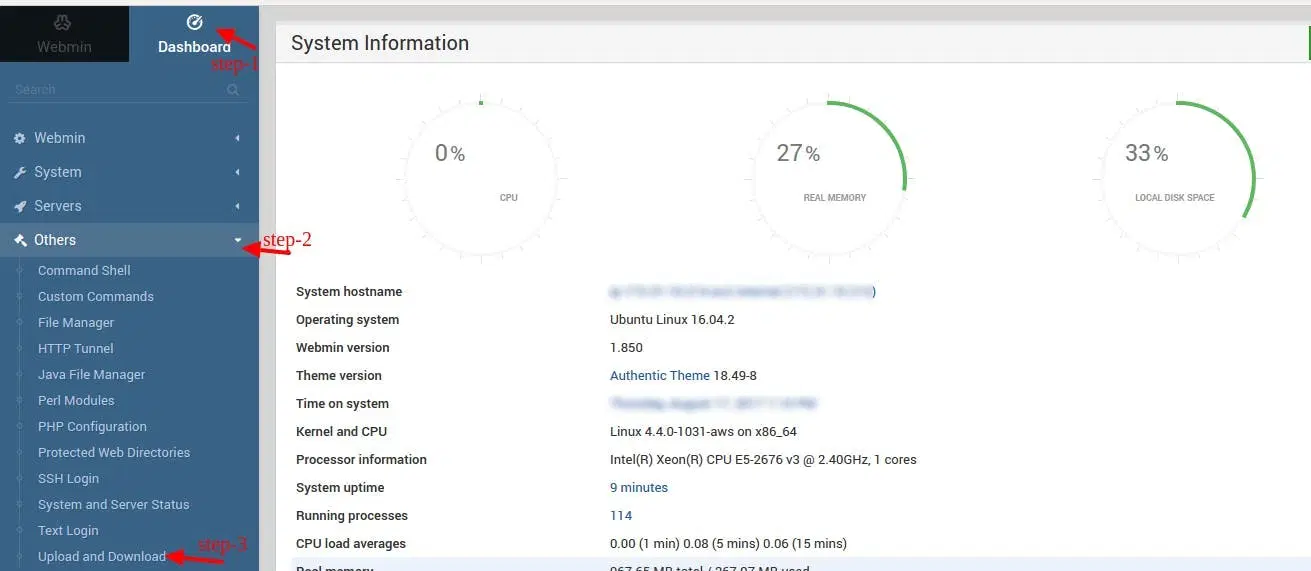
2. Now, Click on Dashboard → Others → Upload and Download
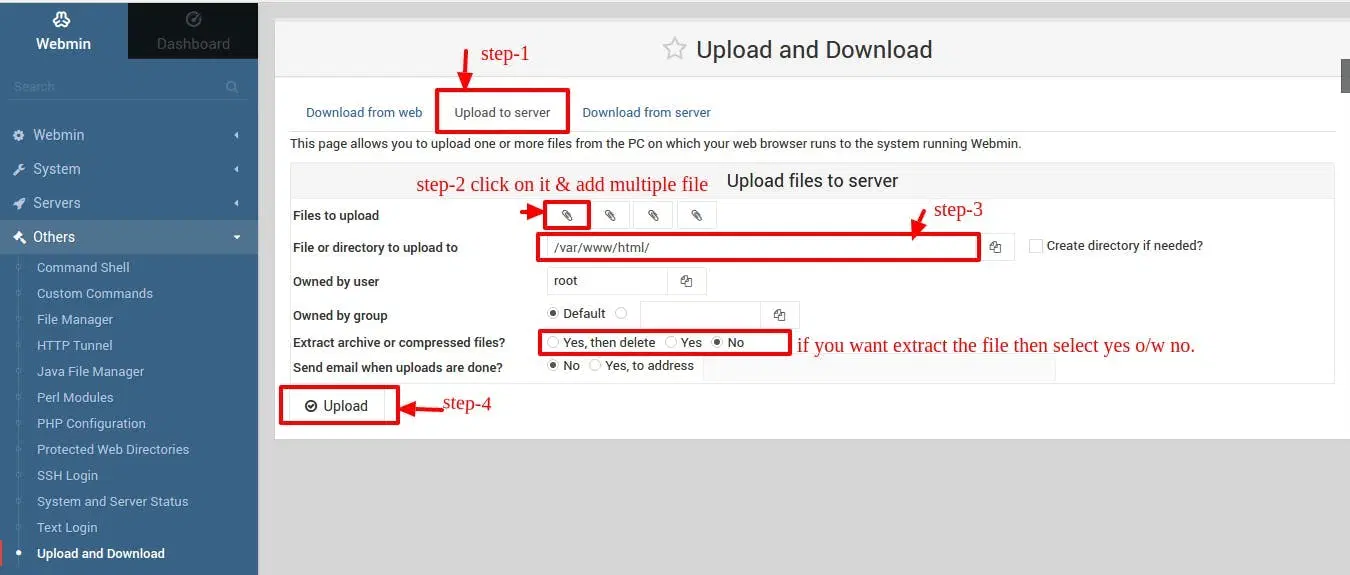
3. Now select Upload to Server. Select the files you want to upload(better to use zip). Upload the file to the directory eg: /var/www/html/
4. You can check the files from the browser or Shell

Method 2 : Steps to transfer file through File manager Method
1. Enter the URL in the browser i.ehttp://instance-public-ip:8000orhttps://instance-public-ip:8000. Then, Enter the username as admin and password as “instance-id”
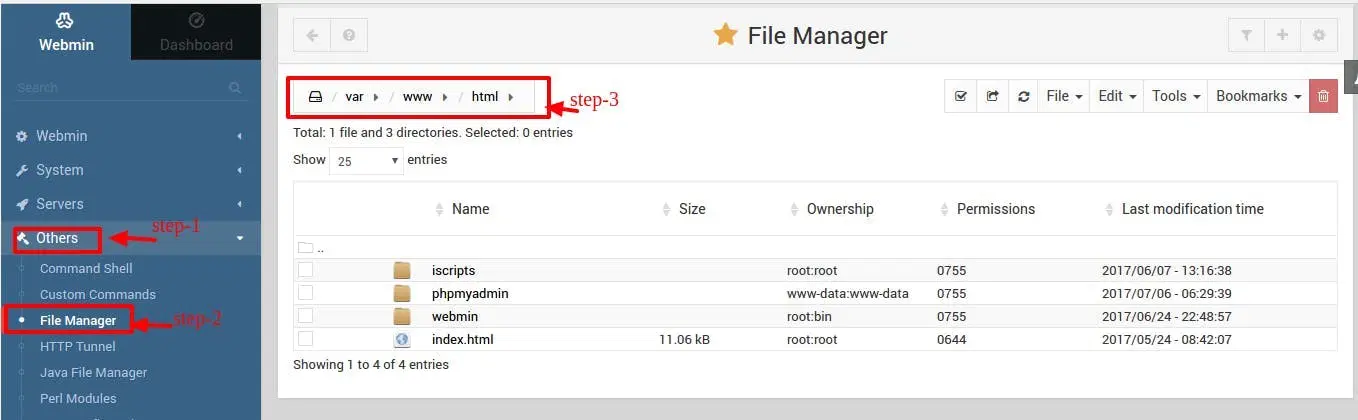
2. Click on Dashboard → Others → File Manager. Then select your directory for eg: /var/www/html/
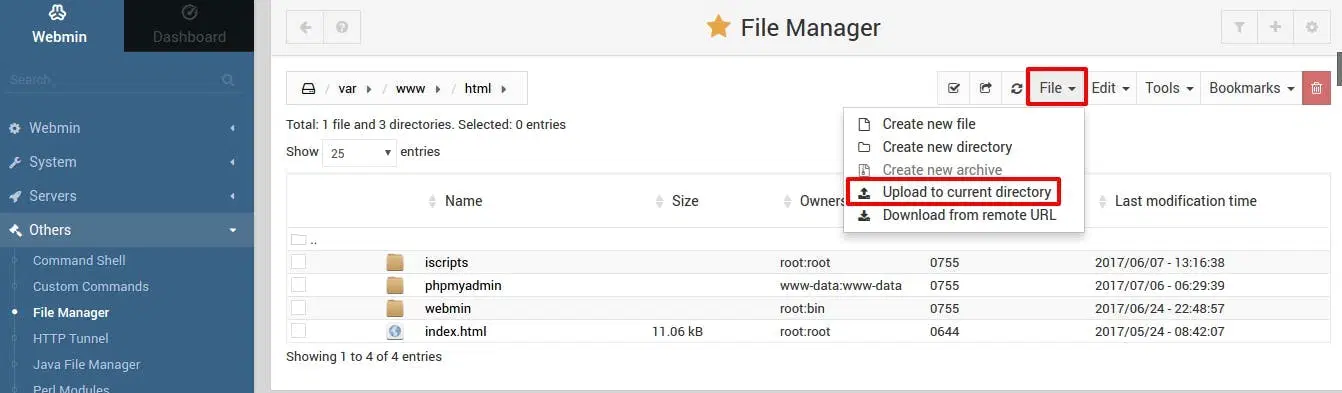
3. Click on File option and then select Upload and current directory
4. Select the files you want to upload and click on Upload Files.Once uploaded, you can check the files from the shell or browser