Steps for Password Management
Note: To run the script, you need to install AWS CLI in the terminal with the user ubuntu. You can install by typing sudo apt-get install awscli–y, or you can refer to the following URL https://docs.aws.amazon.com/cli/latest/userguide/install-linux.html. Once you have installed the AWS CLI, you need to enter the AWS IAM user credentials by typing aws configure. For Password Management, we have created a script that helps you to change the password for the application user admin or any other user in case you forgot your password. By default, we are not running the script. You can run it by logging into the terminal or shell with the instance login method and then type the command below: sudo bash /var/www/html/iscripts/password.sh OR sudo bash /var/www/html/iscripts/forgotpassword.sh.
1. After logging into AWS, select the preferred region, then select the EC2 service
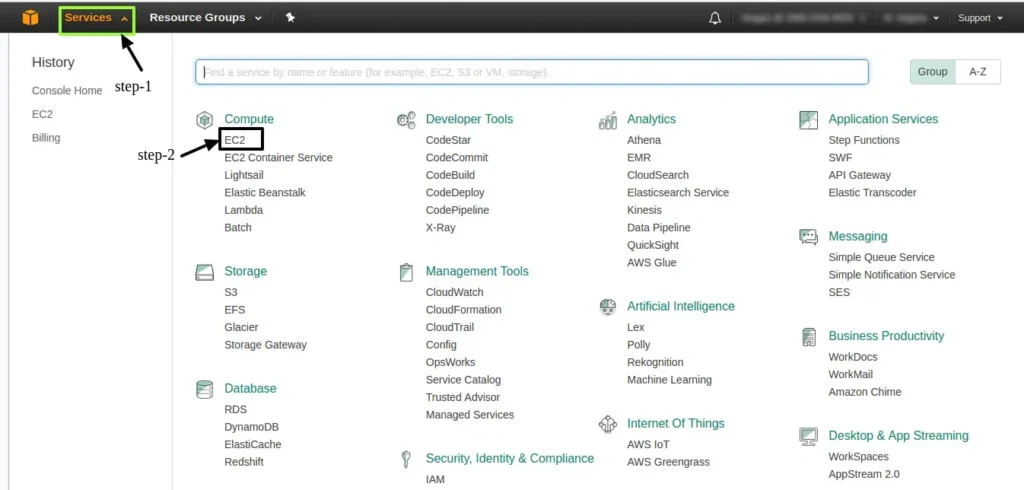
2. Click on Instances and then select your instance to Connect

3. After selecting connect. You will see a page similar to below image.
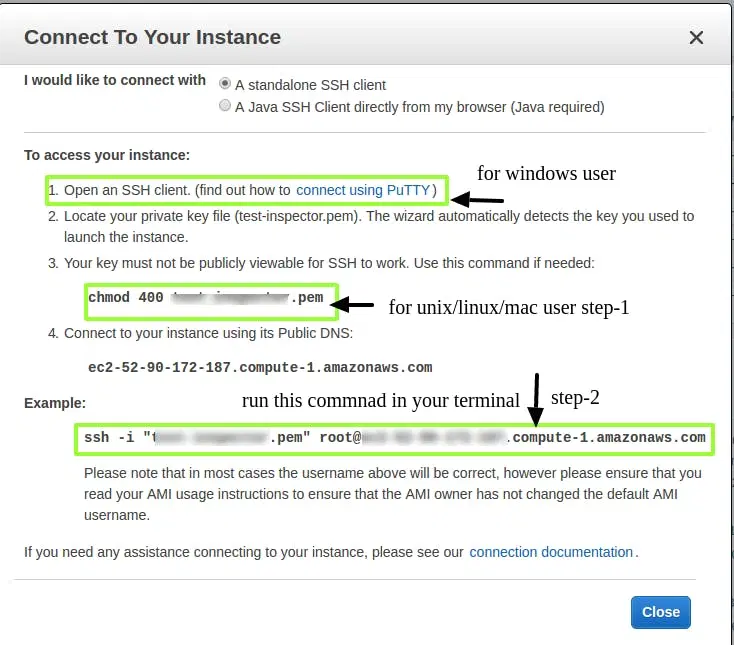
4. To connect to the instance, execute the command as per the above screenshot
Note: replace the username with ubuntu instead of root
5. Once you log in into your system, execute the command “sudo bash /var/www/html/iscripts/password.sh”



